Set up
Set up on Windows
Before you start
- Install VLC Stream and Remote on your phone, and VLC media player on your computer.
- Connect your phone and computer to the same Wi-Fi network, or connect the computer to your phone's hotspot.
You only need to do this once.
Turn on VLC's web interface
In VLC, open Tools › Preferences.
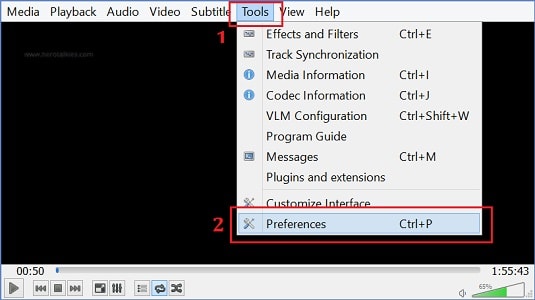
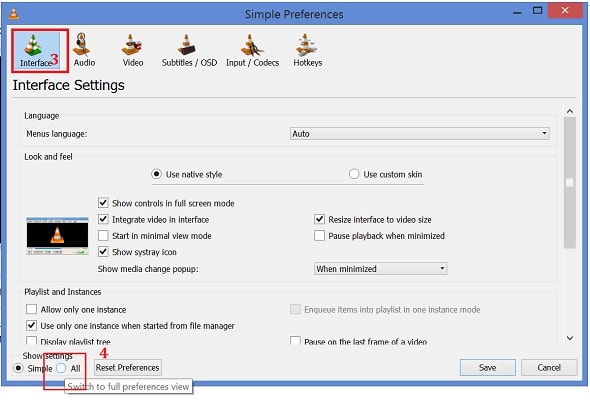
At the bottom left, under Show settings, choose All.
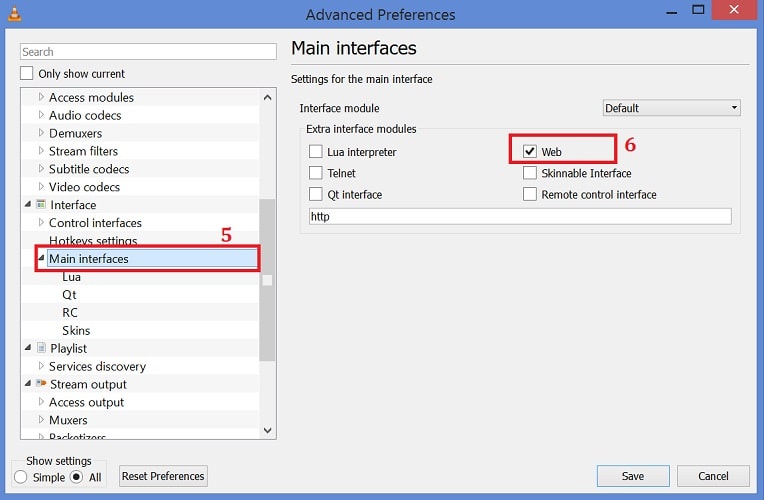
Open Interface › Main interfaces and tick Web.
Open Main interfaces › Lua and, under Lua HTTP, set a password, such as
1234. Remember it: you'll enter it in the app.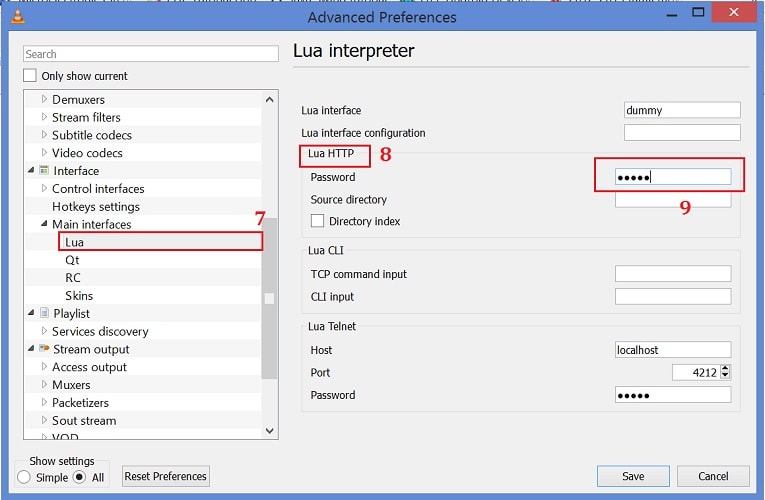
Click Save, close VLC and open it again, then play any video or song.
Connect the app
Open VLC Stream and Remote on your phone. It searches your network for VLC and connects by itself. If it doesn't find VLC, tap Set up manually and fill in:
- Computer name: any name for this computer, such as "Living room PC".
- IP Address: leave it blank to detect it automatically, or enter your computer's IP address (how to find it).
- Port: leave it at 8080 unless you changed VLC's port.
- Password: the password you set in VLC's Lua settings.
Then tap Connect. The app remembers this computer, so next time it connects on its own.
Can't connect? Check that your phone and computer are on the same Wi-Fi and that VLC is open, then follow the troubleshooting steps.
Once you're connected, see how to get around the app.